Running OpenClaw on AWS is one of the easiest ways to deploy your AI agent with better performance, 24/7 uptime, and remote access.
In this guide, you'll learn how to run OpenClaw on AWS using Lightsail for quick setup and EC2 for more advanced control.
Minimum PC Requirements
| Component | Minimum | Recommended |
|---|---|---|
| CPU | Dual Core | Quad Core |
| RAM | 4 GB | 8 GB |
| Storage | 5 GB Free | 10 GB Free |
| OS | Windows 10 / Linux / macOS | Windows 11 / Latest OS |
Recommended AWS Instance
| Type | RAM | Use Case |
|---|---|---|
t3.small | 2GB | Testing |
t3.medium | 4GB | Recommended |
t3.large | 8GB | Better Performance |
g4dn.xlarge | GPU | Advanced AI Tasks |
How to Run OpenClaw on AWS
Which method should I choose?
- Pick Lightsail if you want the fastest setup with Amazon Bedrock already configured
- Pick EC2 if you want to use your own AI provider (Anthropic, OpenAI, etc.) or need more control
Method 1: Amazon Lightsail
Amazon Lightsail has an official OpenClaw blueprint — it installs everything automatically and connects Amazon Bedrock as your AI provider out of the box.
Step 1: Open the Lightsail Console
Sign in to AWS and go to:
https://lightsail.aws.amazon.comClick Create instance.
Step 2: Choose the OpenClaw Blueprint
- Select your AWS Region (choose one close to you)
- Under Select a platform, choose Linux/Unix
- Under Select a blueprint, scroll to Apps + OS and click OpenClaw
Step 3: Choose the 4 GB Plan
- Scroll down to Choose your instance plan
- Then, Select the 4 GB RAM plan (recommended for OpenClaw to run smoothly)
- Give your instance a name — for example,
openclaw-lightsail - Click Create instance
- Wait 2–3 minutes for the instance to show Running status
Step 4: Connect via SSH
In your Lightsail instance, go to the Getting started tab and click Connect using SSH.
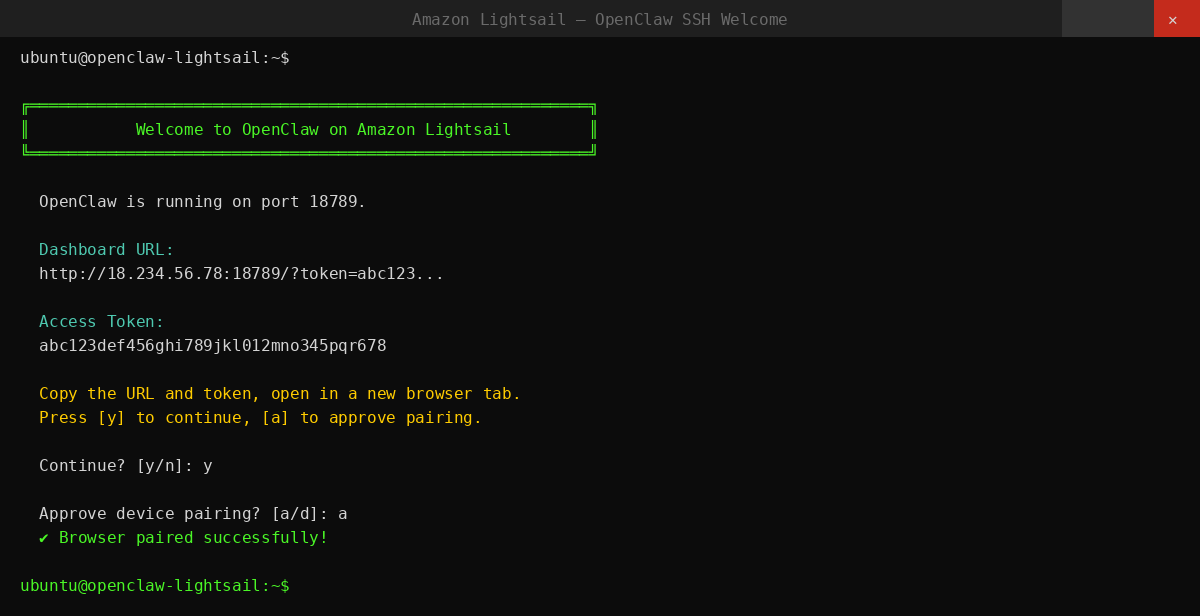
A browser terminal opens. You will see the OpenClaw dashboard URL and access token printed in the welcome message. Copy both.
Step 5: Open the Dashboard and Pair Your Browser
- Open the dashboard URL in a new browser tab
- Paste your access token into the Gateway Token field
- Go back to the SSH terminal
- Press
yto continue - Press
ato approve device pairing
The dashboard will show OK — your browser is now connected to OpenClaw.
Step 6: Enable Amazon Bedrock
Your instance uses Amazon Bedrock as the AI provider. To activate it:
- In Lightsail, go to the Getting started tab
- Copy the provided script
- Open AWS CloudShell at
https://console.aws.amazon.com/cloudshell - Paste and run the script
Once complete, go to Chat in the OpenClaw dashboard and start using your AI assistant. You can also connect messaging channels like Telegram or WhatsApp to chat with your agent from your phone.
Method 2: EC2 Manual Install (Full Control)
Use this method to choose your own AI provider (Anthropic, OpenAI, etc.) and have full control over your OpenClaw setup.
Step 1: Launch an EC2 Instance
- Sign in to AWS Console → search EC2 → click EC2
- Click Launch Instance
- Fill in:
- Name:
openclaw-server - OS: Ubuntu Server 24.04 LTS (64-bit x86)
- Instance type:
t3.small(minimum) ort3.medium(recommended)
- Name:
- Under Key pair, click Create new key pair:
- Name:
openclaw-key - Format:
.pem - Click Create — the file will download automatically
- Name:
Step 2: Set Up the Security Group
In Network settings → click Edit:
- Enable Allow SSH traffic from: My IP
- Leave everything else disabled
Click Launch instance and wait 1–2 minutes for it to reach Running status.
Step 3: Connect via SSH
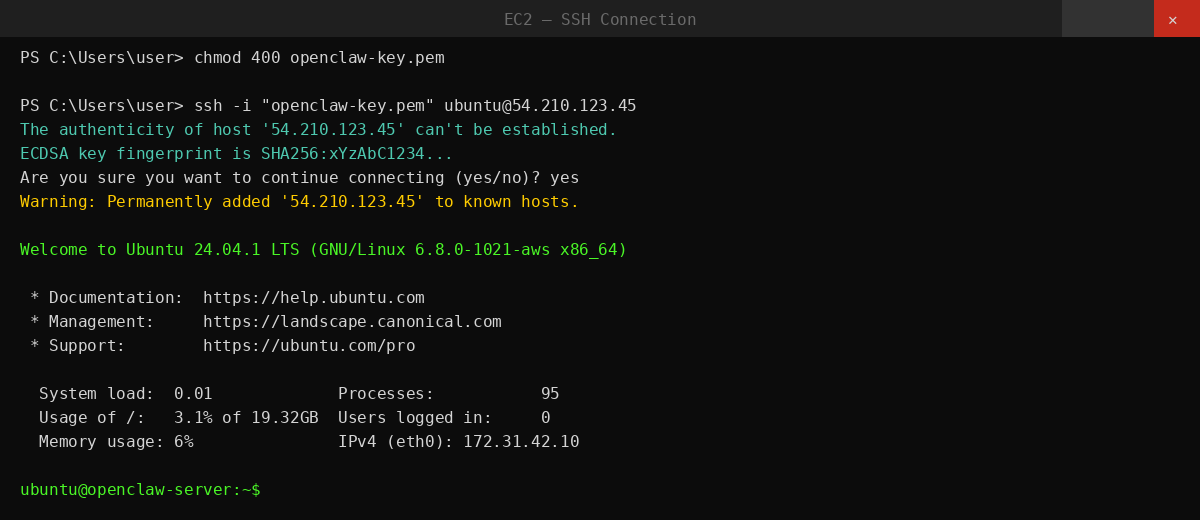
Open a terminal on your local machine. Fix key file permissions:
chmod 400 openclaw-key.pemConnect to your EC2 instance (replace with your actual IP):
ssh -i "openclaw-key.pem" ubuntu@YOUR_EC2_PUBLIC_IPYou are now inside the server.
Step 4: Update the Server
sudo apt update && sudo apt upgrade -yStep 5: Install Node.js 22
curl -fsSL https://deb.nodesource.com/setup_22.x | sudo -E bash -
sudo apt install -y nodejs
node --version
Make sure the output shows v22.x.x before continuing.
Step 6: Install OpenClaw
curl -fsSL https://openclaw.ai/install.sh | bashFollow the on-screen wizard:
- Choose your AI provider (Anthropic, OpenAI, Gemini, etc.)
- Enter your API key
- Optionally connect a messaging channel — Discord, Telegram, WhatsApp, Slack, or others
Step 7: Start the Gateway
openclaw gateway startCheck it is running:
openclaw gateway status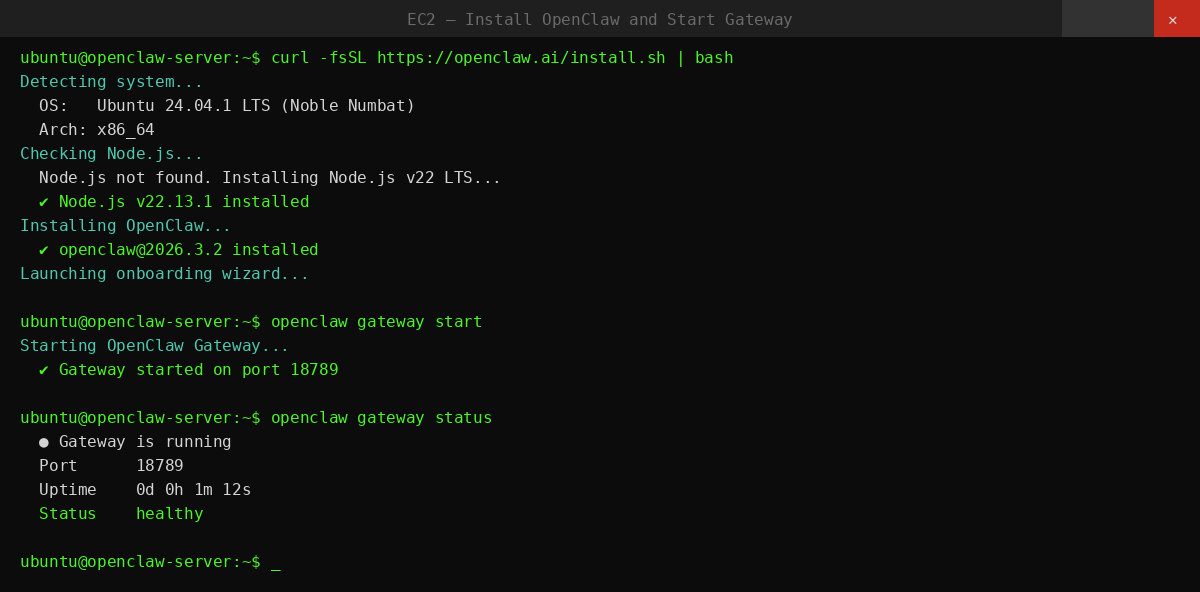
Step 8: Auto-Start on Reboot
Set up OpenClaw to restart automatically when the server reboots:
sudo nano /etc/systemd/system/openclaw.servicePaste the following:
[Unit]
Description=OpenClaw Gateway
After=network.target

[Service]
Type=simple
User=ubuntu
ExecStart=/usr/bin/openclaw gateway start
Restart=on-failure
RestartSec=5

[Install]
WantedBy=multi-user.target
Save (Ctrl+O, Enter, Ctrl+X), then run:
sudo systemctl daemon-reload
sudo systemctl enable openclaw
sudo systemctl start openclaw
Common Issues and Fix
| Issue | Fix |
|---|---|
| Lightsail dashboard won't connect | Copy token exactly from the SSH terminal — no extra spaces |
| Bedrock not working on Lightsail | Run the CloudShell script from the Getting started tab |
| SSH permission denied (EC2) | chmod 400 openclaw-key.pem |
| EC2 connection timeout | Check Security Group — SSH port 22 must allow your IP |
| openclaw: command not found | source ~/.bashrc then retry |
| Node version too low | nvm install 22 && nvm use 22 |
| Gateway not starting | openclaw gateway start |
| Gateway error | openclaw doctor |
| Agent stops after server reboot | Enable systemd service — see Step 8 |
If you prefer to skip AWS setup entirely, you can deploy OpenClaw on Ampere.sh in 60 seconds with no server setup required.
Frequently Asked Questions
Can I run OpenClaw on AWS for free?
Do I need a powerful PC to run OpenClaw on AWS?
Can I run OpenClaw 24/7 on AWS?
Can I access OpenClaw remotely?
Do I need Docker to run OpenClaw on AWS?
Can I connect OpenClaw to WhatsApp or Telegram on AWS?
Can I upgrade AWS resources later?
Can I stop the AWS instance when not using OpenClaw?
Is GPU required for OpenClaw on AWS?
Skip the AWS Setup?
Running OpenClaw on AWS requires configuring instances, networking, and security settings, which takes time. With Ampere.sh, deploy OpenClaw in 60 seconds.
Deploy on Ampere.sh →